Posts

Showing posts with the label PC Tips

Microsoft Word Metadata Scrubber

Image
Metadata in Word documents can reveal information that the creator of the document had no intention to distribute. This ranges from information about the author to comments and a unique identifying ID. It can lead to all kind of privacy leaks. Microsoft even recommends to distribute documents in paper form only on their website. Doc Scrubber is a Microsoft Word metadata scrubber which can be used to analyze and scrub Word documents. The software program is compatible with Windows 98, ME, NT, 2000 or Windows XP. It has been designed with simplicity in mind. It basically is managed by the two buttons Analyze and Scrub. Analyze lets the user analyze one specific Word document to see if and which information it reveals in the metadata. The Scrub button is where the real action takes place. It can be used to scrub a single document, all Word documents in a folder or selected documents of folder. By default a new document will be created after the scrubbing with the metadata removed which is...
10 Basic Tips For the Internet Explorer (IE)

In order to use the Internet Explorer (IE) effectively, we have some basic tips for you to try… Ok let's go now. 1. To extend the window area of the IE, you can make it easy by pressing the F11 key. Then you press it again in order to return the IE to the normal window. 2. Sometimes you want to search a keyword in a long web page that you are surfing. How do you do ?? Just press Ctrl+F and place the keyword you want. 3. Using Backspace key in your keyboard instead of clicking Back in the IE window. 4. You can close your IE window that you are surfing by Ctrl+W. 5. To see the surfing websites history, Press F4 key to see the URL which you have typed. 6. Press Ctrl+D in order to save the URL which you are surfing. And the URL will be in the Favorites. 7. To send a web page to your friend. Do you know we can send it by email from the IE's tools ? Let you try it, go to File > Send > Page by E-mail... 8. To slide the web page by using the keyboa...

How To Clean A Flat Screen Monitor

Flat screen monitors, also known as LCD monitors, are a little different than their CRT cousins when it comes to cleaning. Your standard CRT monitor has a glass screen and be cleaned in pretty much the same way as you would any other glass in your home or office. Flat screen monitors, however, require a bit of special care when cleaning. Their displays are much more sensitive and are easily scratched and damaged. Follow the easy steps below to safely clean your flat screen monitor in just a few minutes. Here's How: 1. Turn off the monitor. If the screen is dark, it will be easier to see the areas that are dirty or oily. 2. Use a dry, soft cloth and very gently wipe the screen. A great choice would be the microfiber type of cloth used to clean eyeglasses. See Tip #1 below for kinds of cloths to avoid. 3. If the dry cloth did not completely remove the dirt or oil, do not press harder in an attempt to scrub it off. Pushing directly on the LCD screen can often cause pixels to burn out....

Speed up Firefox without Re-Installation

Image
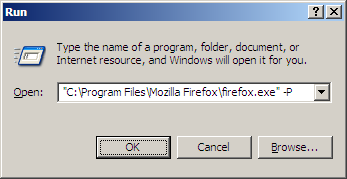
Problem: You cannot imagine life without Firefox but over time, your favorite browser keeps getting slower and slower. Not only is it slow, Firefox sometimes hangs for no reason, consumes a large amount of memory and CPU usage can climb to 90% or more when you have multiple tabs open simultaneously. You have uninstalled most of the extensions and toolbars, deleted all the cookies and Internet temporary files, cleared up the file download queue and disabled the background check for software updates - but none of this has helped you speed-up Firefox. Solution: This is a common problem especially if you have been running Firefox for some time - I don't know why Firefox slows down but here's a small trick to rejuvenate the aged copy of Firefox without doing a fresh install. Step 1: Start Firefox and export your bookmarks as a file on your hard-drive (we'll need them later). Step 2: Type Firefox.exe - P in the Run box of Windows. (see screenshot) Step 3: Click the Create Pr...

Troubleshooting Windows Defender in Vista.

Cannot Update Windows Defender !? If you ever encounter an error code (e.g. "error code 0x80240029 - cannot update" which btw is the most common one), when updating Defender, here is a solution which will help you. This usually happens if the distribution database is broken and needs to be re-created. Here are the solutions to address the issue : 1) As far as Vista goes (don't know if this applies to XP) you can do this by clicking start > all programs > windows updates> change settings > uncheck Automatic Updates, Uncheck Recommended Updates and uncheck use Microsoft Update Service. This will switch from Microsoft Update back to using Windows Update. Reboot. If it works for you fine; you can now reset the update settings to as they were earlier. 2) I also came across this download from Microsoft (Vista/XP). This actually FORCES defender to update ! 3) To manually update Windows Defender visit Microsofts Malware Protection Center for instructions. 4) Lastly ...

Disable "Low Disk Space" Notification in Wondows XP

Open regedit & follow the steps below: 1. Navigate to HKEY_CURRENT_USER\Software\ Microsoft\Windows\CurrentVersion\Policies\Explorer 2. On the Edit menu, click New, click DWORD value . 3. Name the new DWORD Value as NoLowDiskSpaceChecks 4. Right click the new DWORD Value and Modify the data value to 1. 5. Exit the registry editor and restart your computer.

How to access FTP servers without any software

Image
FTP is used for transfer of large files. Bloggers and webmasters use FTP frequently for uploading files to their server space all the time. FTP transfers usually involve some software installed on the computer. The method usually involves connecting to a particular host server URl, and entering the username and password for access. FTP transfers may be primitive (they do not have much security), but they are still widely used. Imagine yourselves in this situation : you are at a friend's house or a browsing cafe, and need to access your server immediately (perhaps for uploading WP-Cache during a spike, for example). Do you wait until the download of FTP software is complete? That is a complete waste of time. There is an easier way to access FTP servers - without any third-party software. All that you require is the humble Windows Explorer or Internet Explorer (either of them can be used). To access any FTP server, enter the following (replace server with the domain/subdomain): FTP:/...

Motherboard

The motherboard is the heart of the computer, every part of the computer relies on the motherboard to function correctly. It maintains connection between every PC component and ensures that things are operating smoothly between them. Many signs of motherboard failure is that the computer won't boot up, not reaching the POST test, erratic system behavior, different combinations of components not working. The motherboard is the heart of the computer, every part of the computer relies on the motherboard to function correctly. It maintains connection between every PC component and ensures that things are operating smoothly between them. Many signs of motherboard failure is that the computer won't boot up, not reaching the POST test, erratic system behavior, different combinations of components not working. Because everything is connected to the motherboard certain parts may or may not work correctly if the motherboard is faulty so be sure to test those parts before thinking they...

Computer maintenance tips

With the amount of information available for download on the Internet, it's easy to quickly fill up your valuable hard drive space and turn your computer into a sluggish, unresponsive monster. Keeping your hard drive clean is essential to the high performance that the latest computers can achieve. Fortunately, it's a simple process; one that can easily be performed on a regular basis and, with some organization, keep your computer running like a well-oiled machine. You can discover how much hard drive space is available on your computer by accessing the DriveSpace program in your System Tools. A pie graph will show you the amount of used and unused space for each of your drives. Check this often to keep an idea of how much space you are using. There are six simple steps to clearing up your hard drive: 1. Uninstall unused programs. Many times a new program will come along that looks fun to have or play with, but after a week or two you simply stop using it. These programs clutte...

How to break into audit mode during a manual install of Windows Vista.

Audit mode is a mode of Windows Setup that lets you bypass Windows Welcome so you can quickly access the desktop.  Audit mode is usually entered by running sysprep /audit command or using an answer file setting during unattended installation.  But if you install Windows Vista manually on a computer, you can also break into audit mode when the Windows Welcome screen appears by pressing CTRL+SHFT+F3.  This lets you get to the desktop quickly so you can add drivers, install applications, and do other stuff without having to go through all the steps of Windows Welcome.

Avoid Win XP Re-activation

Image
The time may come that you'll need to reinstall your Windows XP. It could happen. Maybe you'll add a new motherboard or hard drive. Maybe you'll get constant errors and problems that just won't go away. Or perhaps you're a neat freak who wants to rid yourself of clutter and start fresh with a clean operating system. If you do reinstall Windows XP, then you'll need to re-activate it too—that is, unless you keep this tip handy ;-) See, the first time you activated XP it created a file called "wpa.dbl" that lives in the WINDOWS\system32 folder. By creating a backup of this file on disk, you can simply put it back into the folder after reinstalling XP and avoid the whole re-activation hassle. Here's how... Go to My Computer then select your Hard Drive (usually drive C). Goto the WINDOWS\system32 folder and scroll way down until you find the wpa.dbl file. Right-click and choose "Send To" then either Floppy Drive (make sure you have a disk in) ...

How to Protect Worksheets in Excel

The best use of the Excel protection system is to prevent a data entry person from accidentally damaging formulas or formatting in your spreadsheet file. Passwords aren't needed for this purpose. Worksheet protection There are two different menu locations that together control worksheet protection: * Format, Cells, Protection, with a check box labeled Locked, to choose which cells the user will be able to modify when the sheet is protected * Tools, Protection, Protect Sheet to toggle sheet protection on and off In a new blank worksheet all cells are formatted Locked, but worksheet protection is off (Tools menu) so the locked cell formats have no effect. This is the part that confuses some people; it seems to work backwards to expectations, but the way it works actually makes it less work to use, once you get used to it. Here's what you do: select all the cells you want the user to be able to edit, either one range at a time or all together using the Control key, and go ...

How to start windows programs quickly with Run Command...?

The run option of Start menu is used to run a program or to open a document directly. If you Do not know the exact location of the program or document then click on Start button to open Run and type the programs shortcut name to open it directly. Run Commands Appwiz.cpl -- Used to run Add/Remove wizard Calc --Calculator Cfgwiz32 --ISDN Configuration Wizard Charmap --Character Map Chkdisk --Repair damaged files Cleanmgr --Cleans up hard drives Clipbrd --Windows Clipboard viewer Control --Displays Control Panel Cmd --Opens a new Command Window Control mouse --Used to control mouse properties Dcomcnfg --DCOM user security Debug --Assembly language programming tool Defrag --Defragmentation tool Drwatson --Records programs crash & snapshots Dxdiag --DirectX Diagnostic Utility Explorer --Windows Explorer Fontview --Graphical font viewer Fsmgmt.msc -- Used to open shared folders Firewall.cpl -- Used to configure windows firewall Ftp -FTP.exe program Hostname --Returns Computer's name...